 TillYouDo
The TillYouDo guide
Snooze a reminder without losing the original deadline
“Not now” does not have to mean “forgotten”. Move the next notification to a time that works.
Updated 27 September 2026 · iPhone · iOS 26+
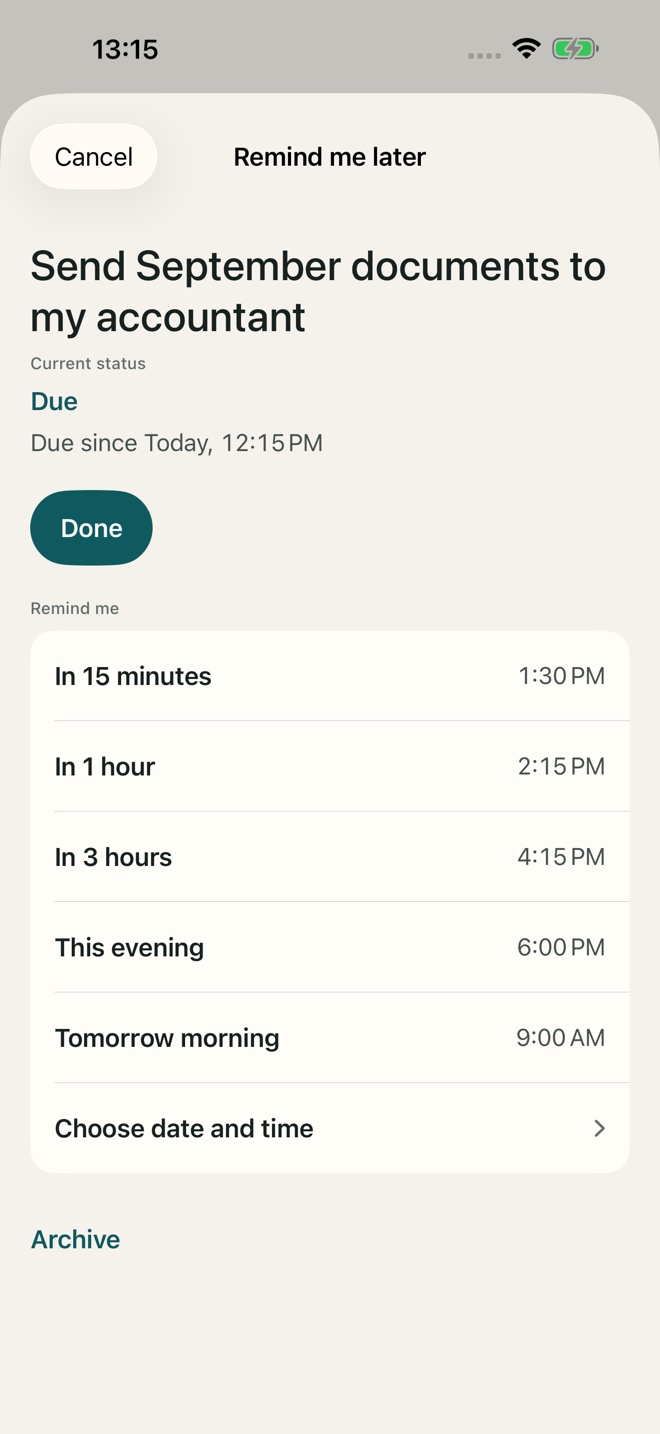
Snooze inside the app
On an actionable reminder, tap Later or Snooze. Choose one of the offered times or set your own. Check the resulting date and time before confirming. Cancel returns you to the reminder without changing its plan.
Act from a notification
Touch and hold a TillYouDo notification to reveal its actions. You can explicitly mark it Done or use the quick snooze action. iOS controls how these actions appear and when authentication is required. A collapsed notification may not show the buttons.
Change the quick interval
Open Settings → Quick snooze. Choose a preset or a custom amount in minutes, hours or days, then save. This sets the interval used by the quick notification action. For example, choose 15 minutes if an hour is usually too long. Quick snooze is a Free feature.
The original deadline stays meaningful
Snooze changes the next delivery, not when the task originally became due. It does not mark the reminder complete or restart Adaptive’s more frequent first phase. The card can therefore show both the original deadline and a later next notification.
Pick a date when “later” has a specific meaning
For a call after a meeting, a chosen clock time can be clearer than a relative delay. For a new recurring pattern, edit the schedule. Snooze is a deliberate change to the next delivery, not a replacement for the recurring rule.