 TillYouDo
The TillYouDo guide
Give reminders a place. Give rest one too.
Choose when ordinary follow-ups should give you space, without treating the unfinished reminder as done.
Updated 27 September 2026 · iPhone · iOS 26+
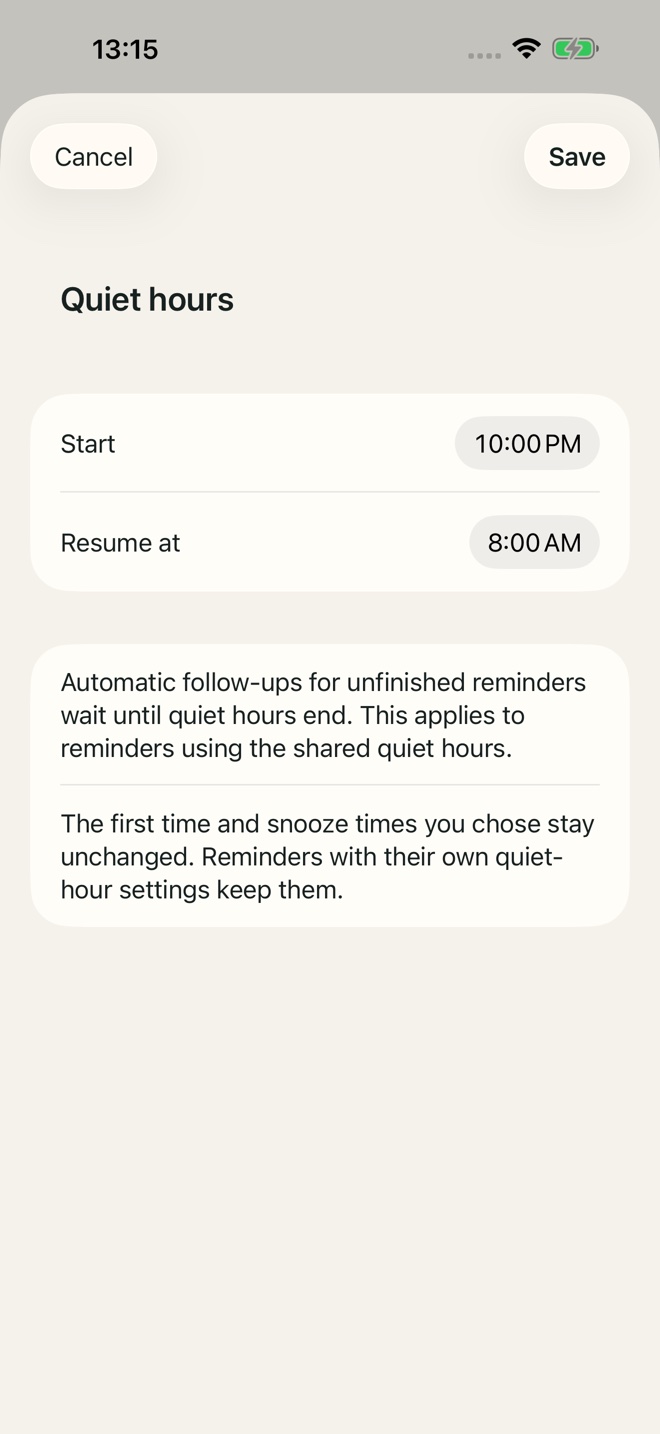
Set your default quiet hours
Open Settings → Quiet hours. Review the start and end of the quiet period and save. Global quiet hours are included in Free. Quiet hours affect ordinary follow-ups, not the first alert at the due time or a time you explicitly choose with Snooze. The setting belongs to TillYouDo; it does not change notification settings for your other apps.
Check the reminder’s own setting
When creating or editing a reminder, open Quiet hours in the additional settings. A reminder can follow your app default. A custom period for that reminder or bypassing quiet hours requires Pro for new use. Review the choice alongside the displayed next-delivery time.
Quiet is not complete
A quiet period does not finish, skip or archive a reminder. The original due time remains meaningful. The next eligible notification follows the saved plan. Do not treat quiet hours as a way to move a recurring calendar deadline.
Focus is a separate iPhone setting
Your iPhone’s Focus, notification previews and notification permissions still apply. TillYouDo cannot turn off Focus or force a normal banner to appear. If an alert behaves differently from what you expect, check both the app’s plan and the system settings.
Urgent alerts need a separate decision
Optional urgent signals use a separate system permission and are part of Pro. They are not enabled automatically by a quiet-hours choice. Review urgent and quiet settings together; stopping an urgent sound never completes the reminder.